
Source: Macrumors
iOS 27: 13 Ways the Messages App is Smarter and Less Annoying
By Macrumors4 min readJuly 7, 2026
https://www.macrumors.com/guide/ios-27-messages/
External Source means this preview stays on Qubicweb while the full article lives on the publisher site.
Brief points
Key points will appear here after this read is condensed for Qubicweb. Use the source link below if you need the full article immediately.
Contextual Suggestions
Messages uses Apple Intelligence to surface one-tap suggestions based on what's being discussed in a conversation. If someone you're talking to asks you to send a photo, Messages recognizes the request and suggests adding the relevant photos.
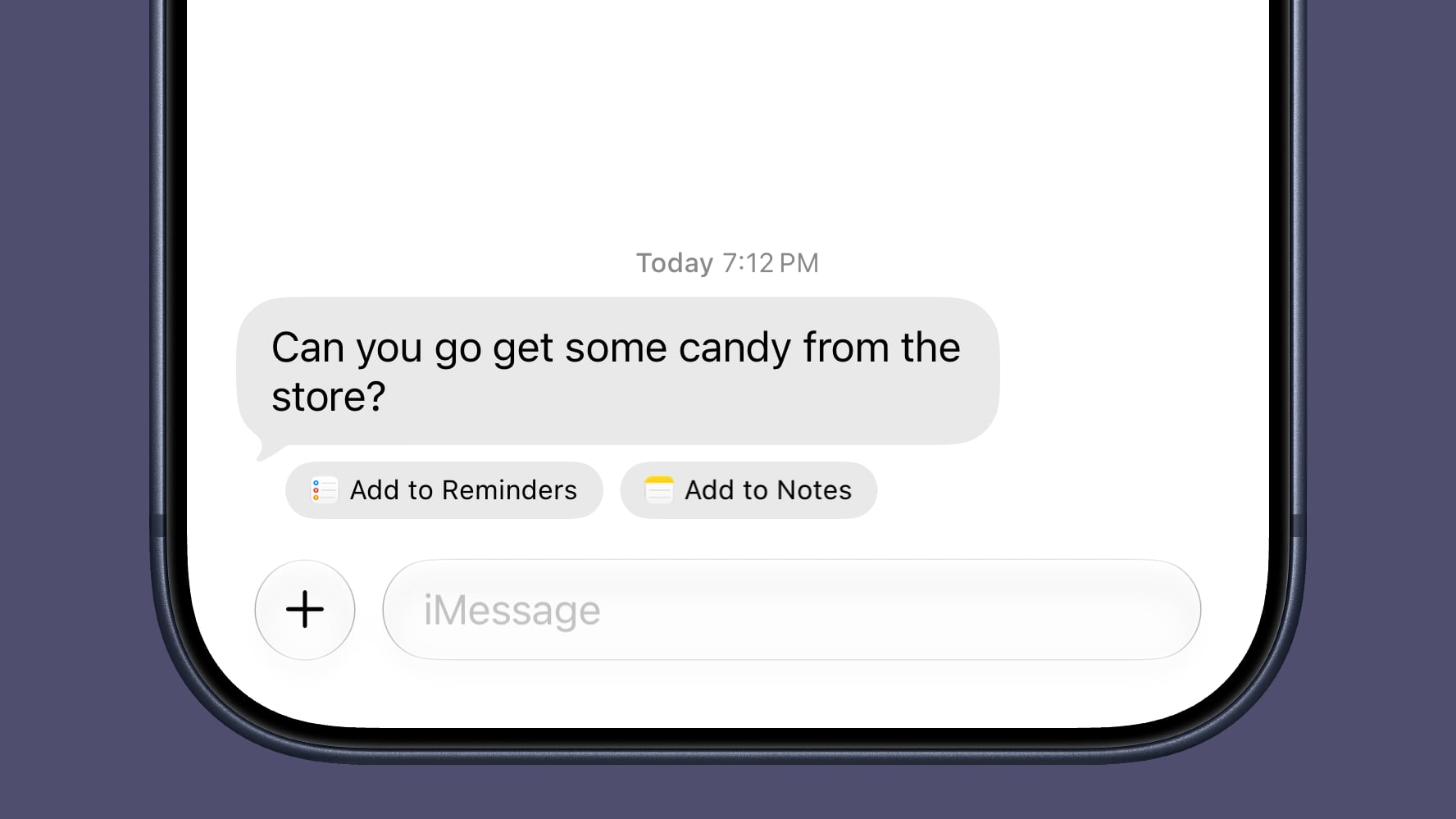
If someone invites you to an event, Messages offers to add it to your Calendar. If someone asks you to pick something up at the store, Messages will suggest adding it to your Reminders list or to the Notes app.
Messages will also suggest Genmoji you might want to generate based on the conversation.
Write With Siri
There's a systemwide Write with Siri feature that's available in the Messages app. Siri AI can compose entire messages for you, proofread your messages, or give you feedback.
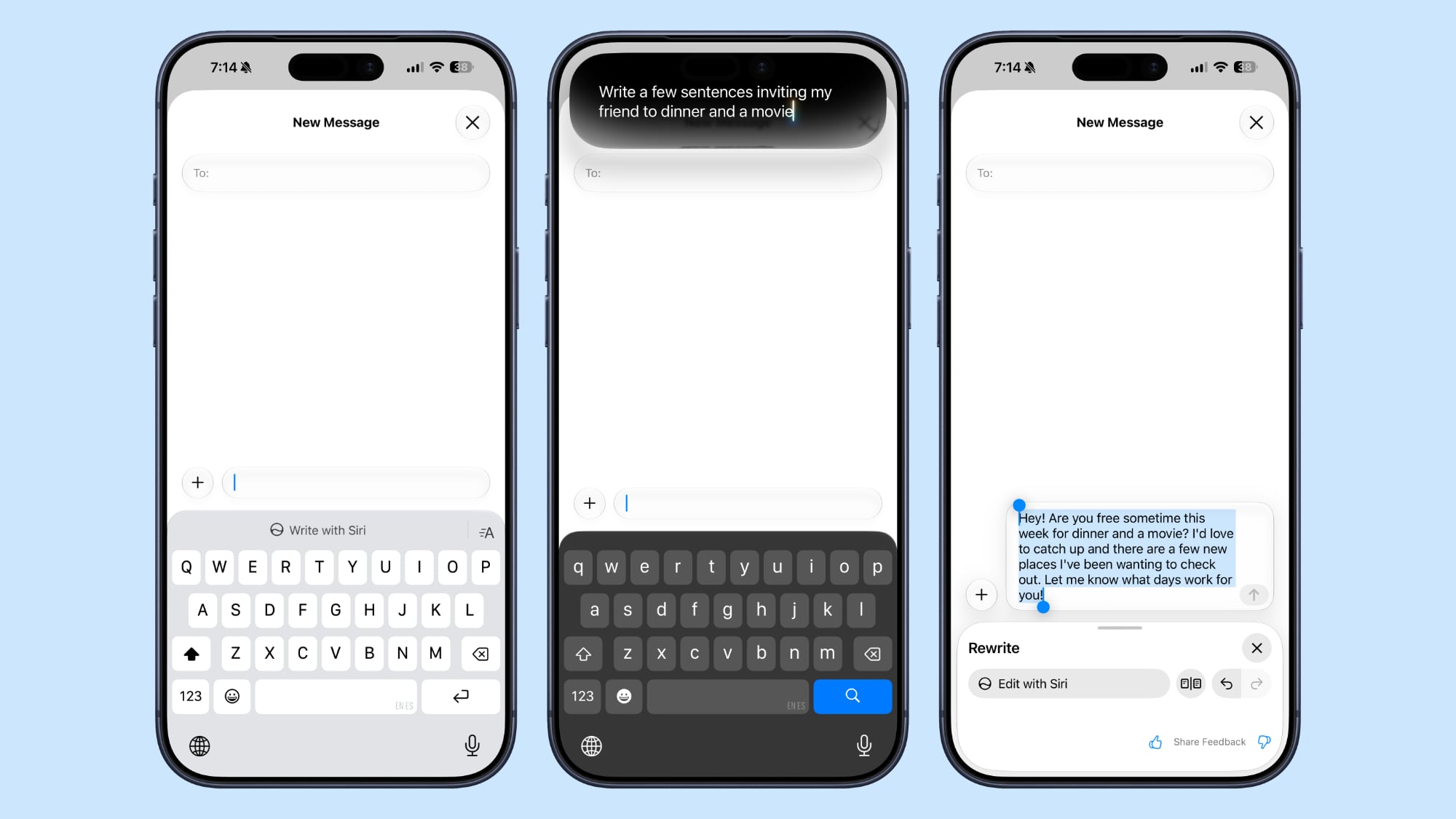
There is a dedicated Write with Siri button above the keyboard where you can get to the new Siri tools.
Smart Reply suggestions also use your writing style so they sound more natural.
Siri AI
Siri AI integrates with the Messages app. You can ask Siri to find images, videos, links, addresses, phone numbers, and more in the Messages app, plus Siri can draft message replies and act on info in the Messages app, like adding an event date to the Calendar app.
Drawing
You can use a new Drawing interface in the Messages app to send little sketches and notes. It's available when tapping on the "+" button next to the text bar in a conversation.
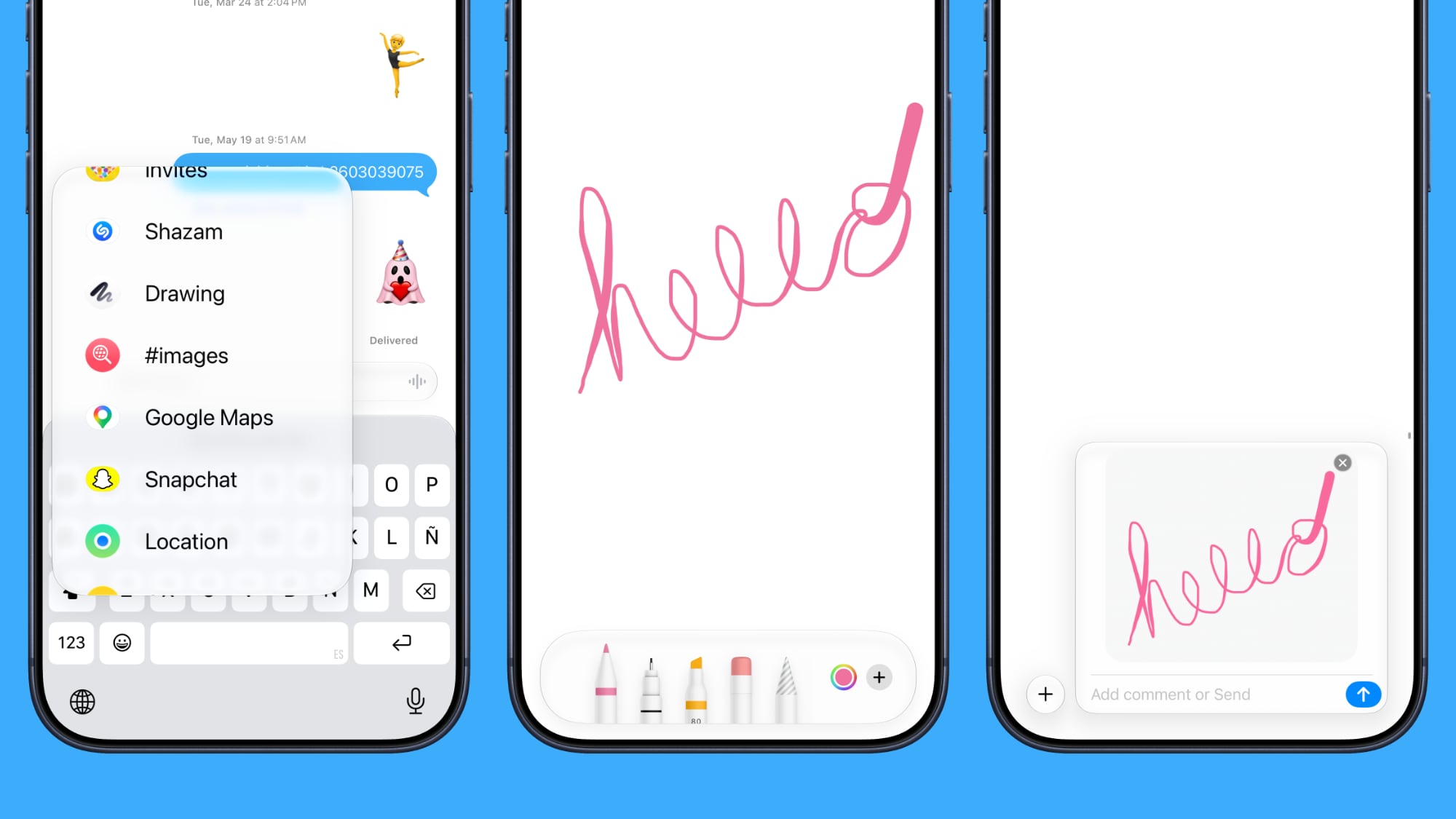
The drawing interface is the same as the Markup tool available in apps like Photos and Notes. There's a marker, a pen, a highlighter, and an eraser, plus options to use the tools in any color.
Accidental Recordings
The iOS 27 Messages app includes an option to remove the audio button from the text bar. In the Messages section of the Settings app, you can navigate to Show in Text Field to set the right-side button to Record Audio, Start Dictation, or None.
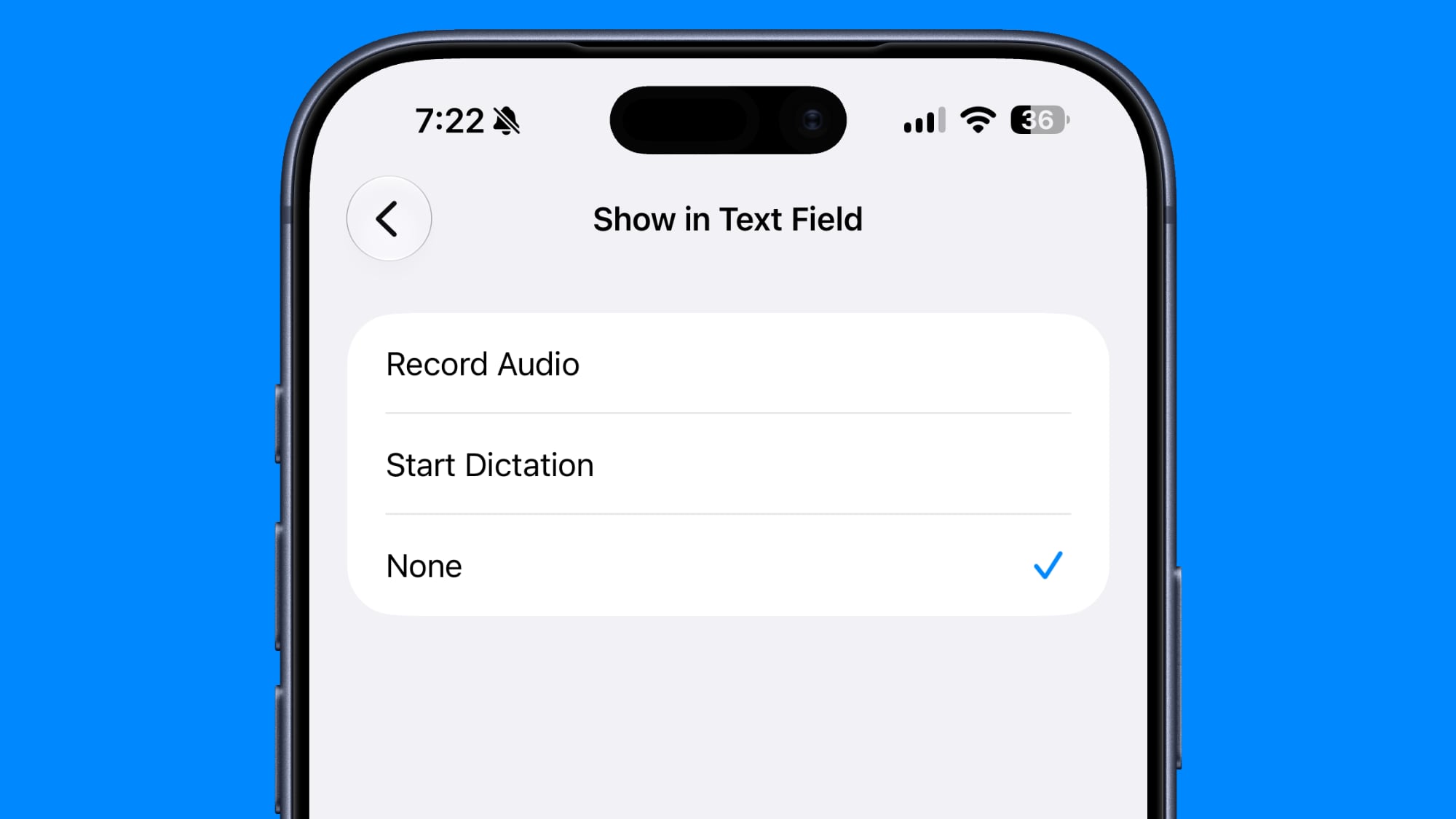
Setting the option to none will prevent you from accidentally recording a voice message with an errant tap.
Tapbacks
Messages now consolidates notifications for Tapback responses, which is useful when you're in a group thread and tons of people are sending emojis.
Sending
When a message fails to send in iOS 27, your iPhone will automatically retry sending it. In iOS 26, you get an alert if a message fails, but you have to manually tap to try to send it again.
The Messages app also supports continuous sending of photos, videos, and texts. If you're sending someone a photo and your connection is poor or you go offline, it automatically resumes sending when the connection is restored.
Syncing
Cross-device syncing is improved in iOS 27, so conversations will sync more reliably across the iPhone, iPad, Mac, Apple Watch, and Vision Pro. Fewer messages will fail to sync and display properly when you switch between devices.
Messages, read states, reactions, and attachments sync faster.
When you take a photo and then go to the Messages app to send it, you're more likely to see it right away. Apple says the iPhone is faster to add recent camera captures to Messages.
Search
Apple improved its search index across apps like Mail and Messages, so you're more likely to find what you're looking for.
You can also search for conversations in Messages using a phone number or a contact's nickname.
Offloaded Media
If you have photos or videos that have been offloaded to save storage space, you can still find them in the iOS 27 Messages app when you search.
Thumbnails are also displayed for offloaded media instead of a placeholder image, so you know what's there.
RCS
In RCS message conversations with Android users, you can now long press on a message to send an inline reply. iOS 27 also shows reaction emoji directly on images and videos, a feature that was not functioning in iOS 26.
Genmoji
Apple revamped Genmoji creation in iOS 27. There's an updated interface for describing an emoji that you want, with options to start from an existing emoji, choose an image from Photos, or select a person.
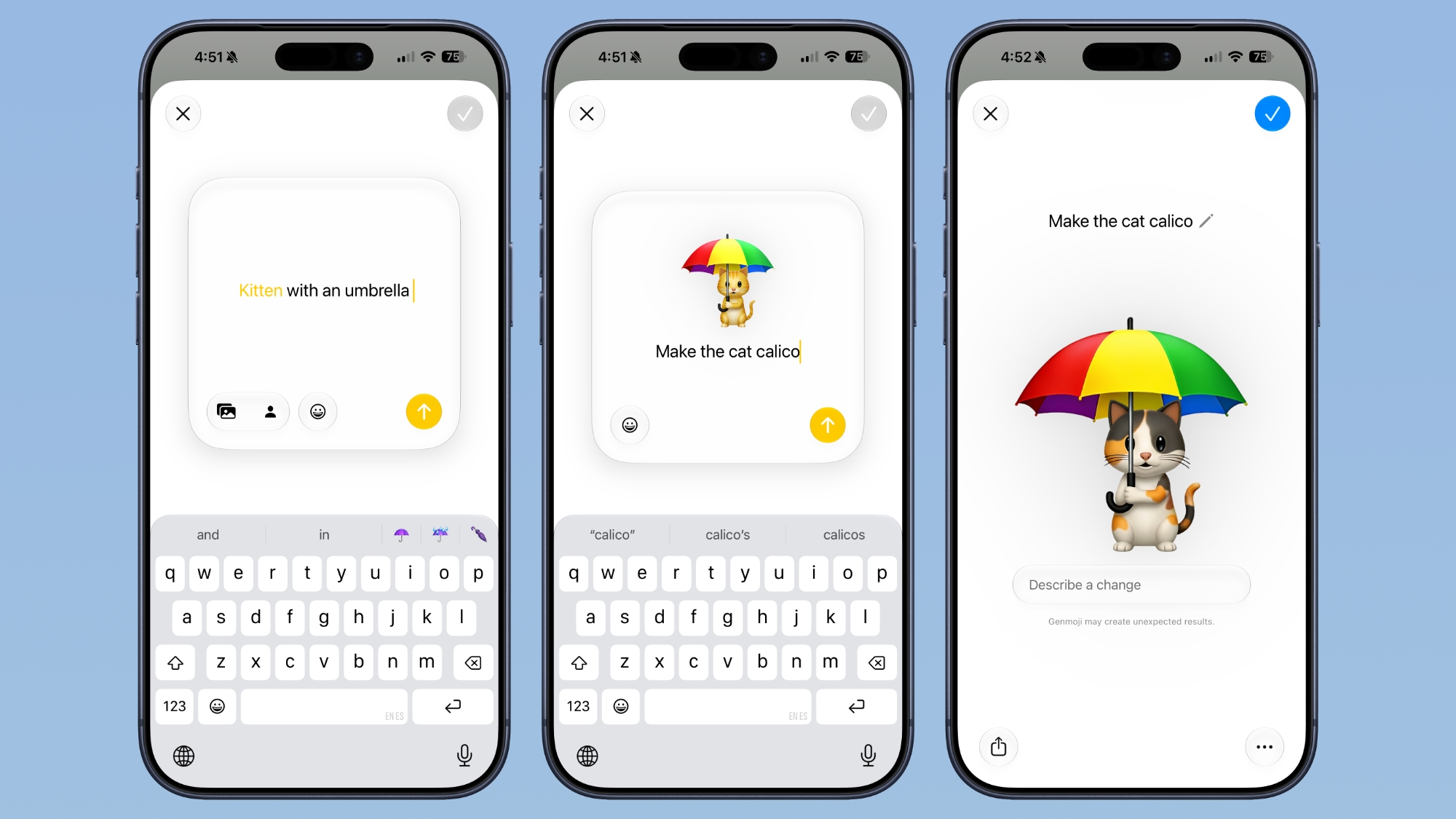
After uploading an image or using a text phrase to create a Genmoji, there's a new "Describe a change" interface for making updates to what you've already created. You can iterate on designs and change individual elements of a Genmoji, tweaking colors and objects. Each change uses the old base instead of regenerating a new Genmoji.
With a series of requests, it is possible to make a complicated, multi-element Genmoji. Along with describing changes, you can add in additional emoji, and the interface makes suggestions on what to do next.
Genmoji output is more consistent, and Genmoji look more like real emoji with a 3D, cartoonish style by default. There is now an option to change style, so if you don't want the cartoonish look, you can ask for something else like a drawing or a sketch.
Large Conversations
Large conversations load and scroll faster in iOS 27, according to Apple.
Read More
More on all of the features in iOS 27 can be found in our iOS 27 guide.
This article, "iOS 27: 13 Ways the Messages App is Smarter and Less Annoying" first appeared on MacRumors.com
Discuss this article in our forums